
With the Keboola modules in Boost.space Integrator you can:
Upload data into a table, preview data, export a table, and retrieve file URL’s from a run.
Run and retrieve a queue job, unload data asynchronously, and start an orchestration.
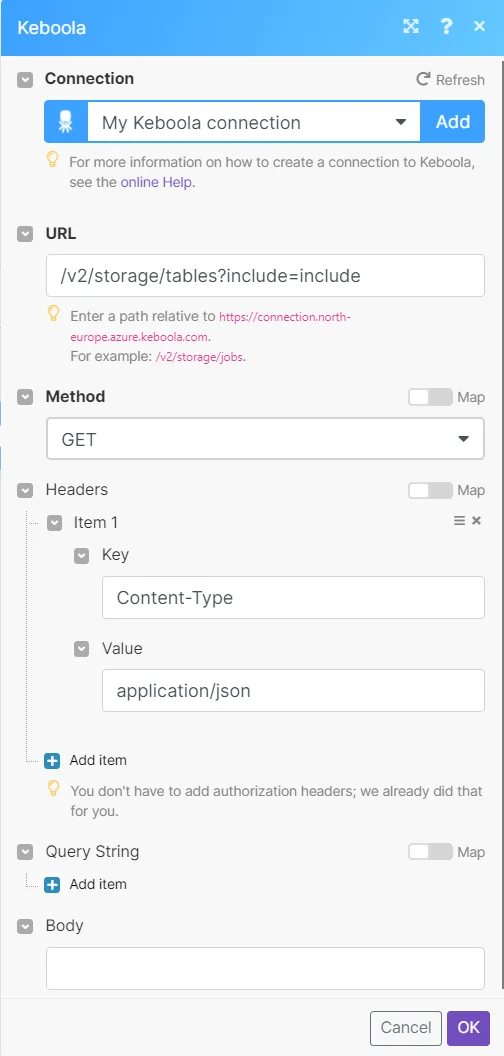
Call APIs
To get started with Keboola, create an account at keboola.com
The module dialog fields that are displayed in bold (in the Boost.space Integrator scenario, not in this documentation article) are mandatory!
Connect Keboola with Boost.space Integrator
Log in to your Keboola account.
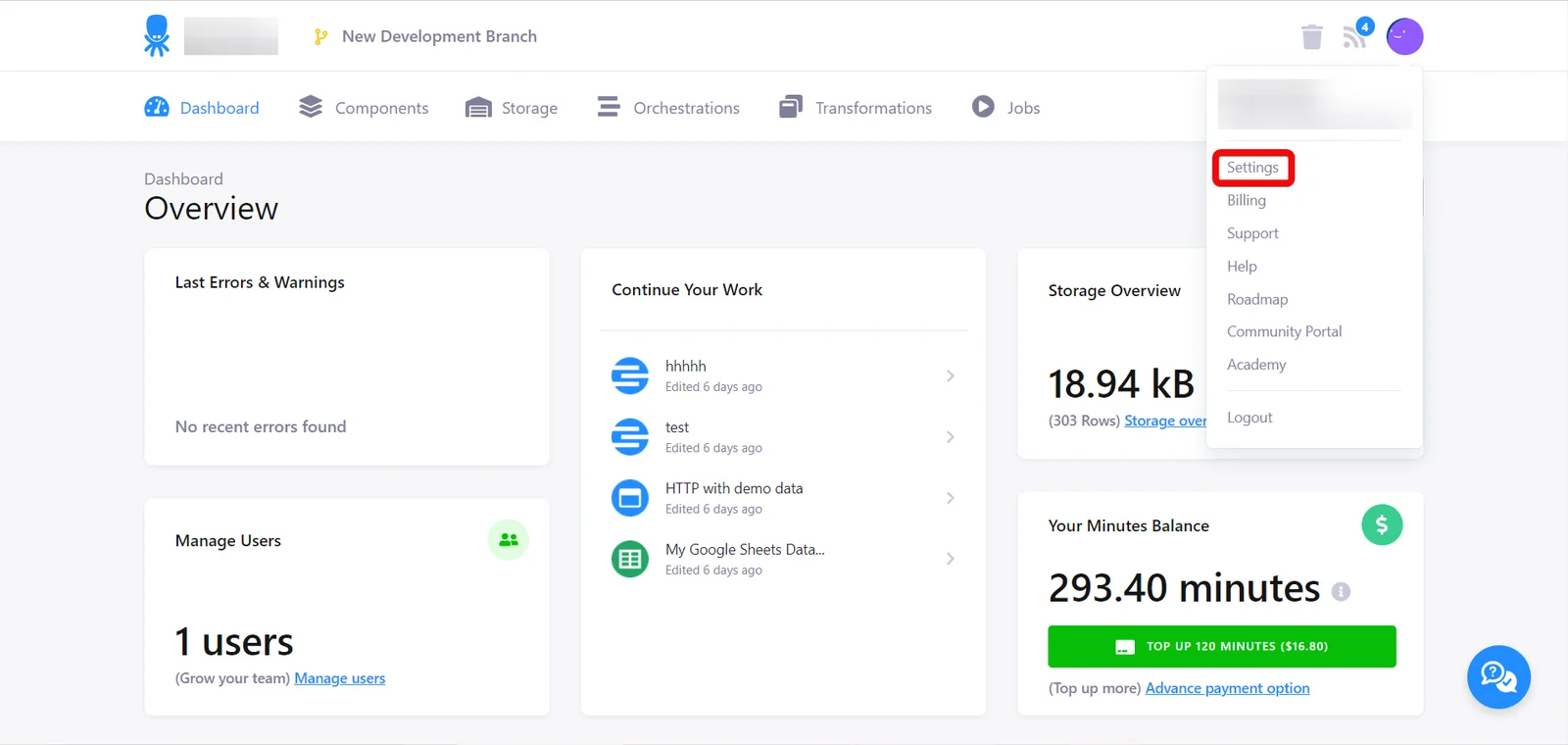
Click Profile picture on the top right and click Settings.
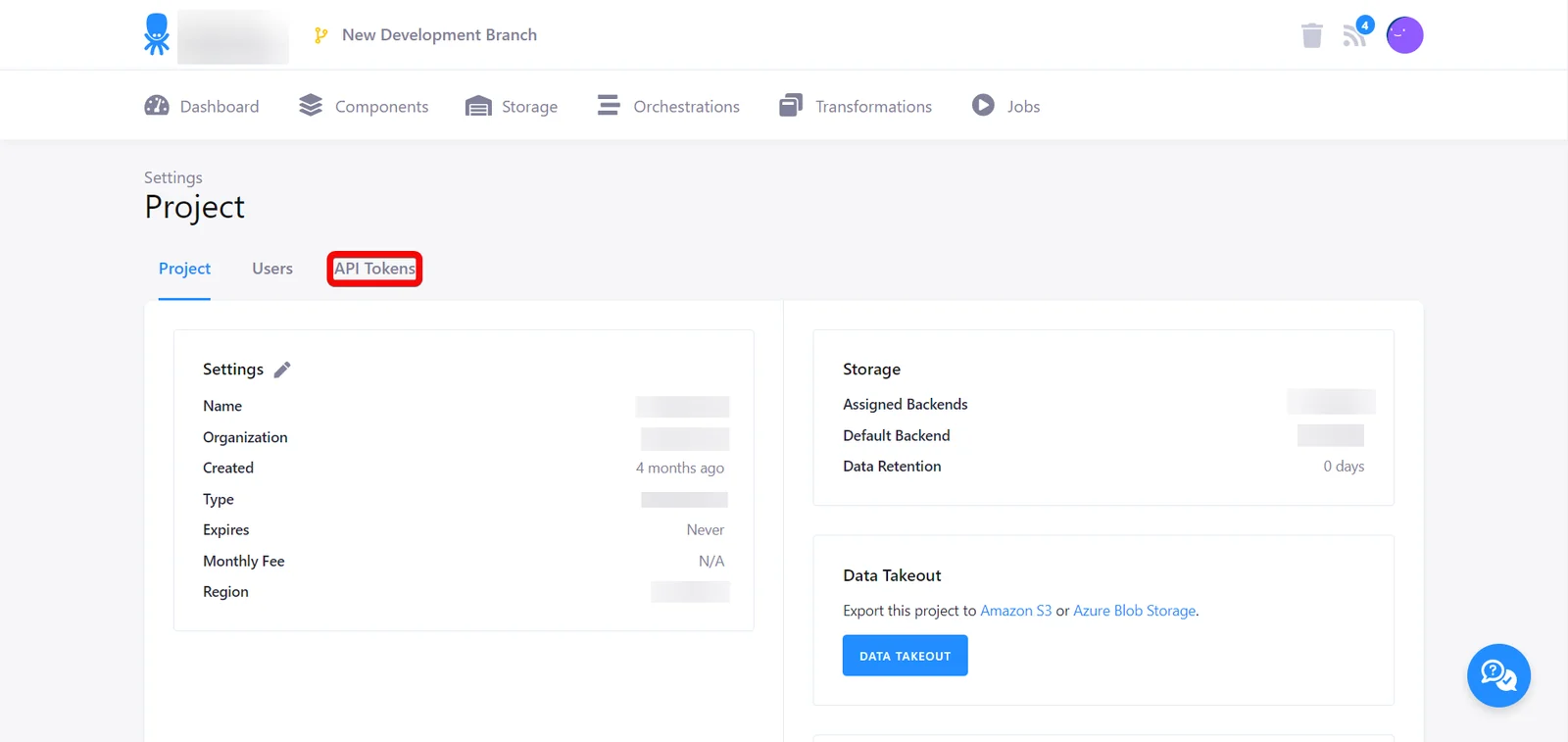
In the Settings tab, click API Tokens.
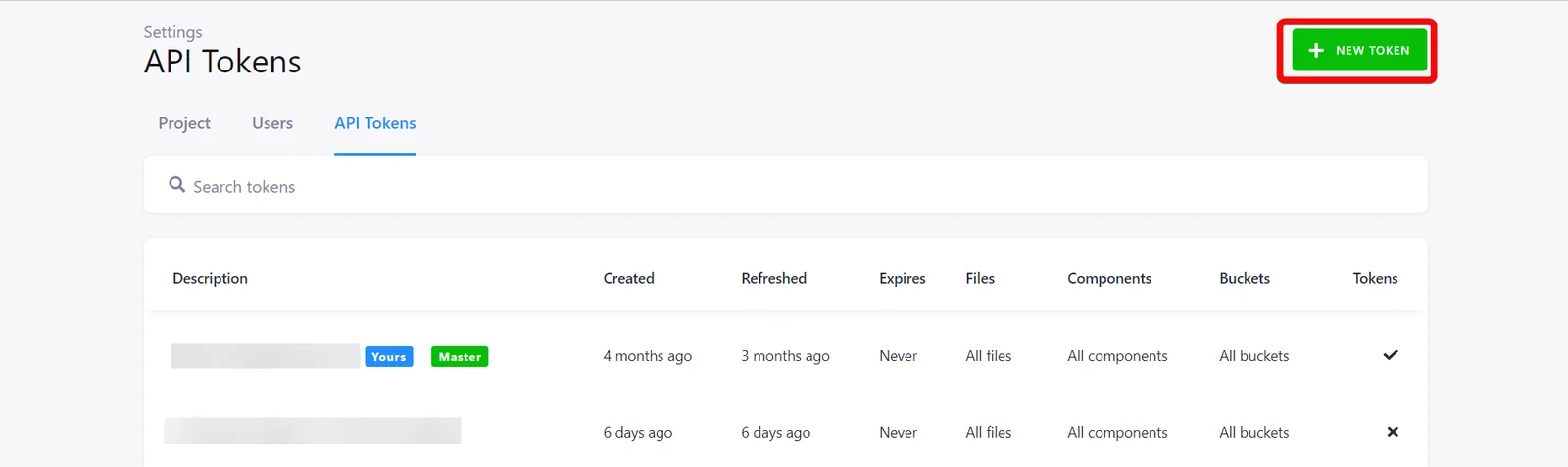
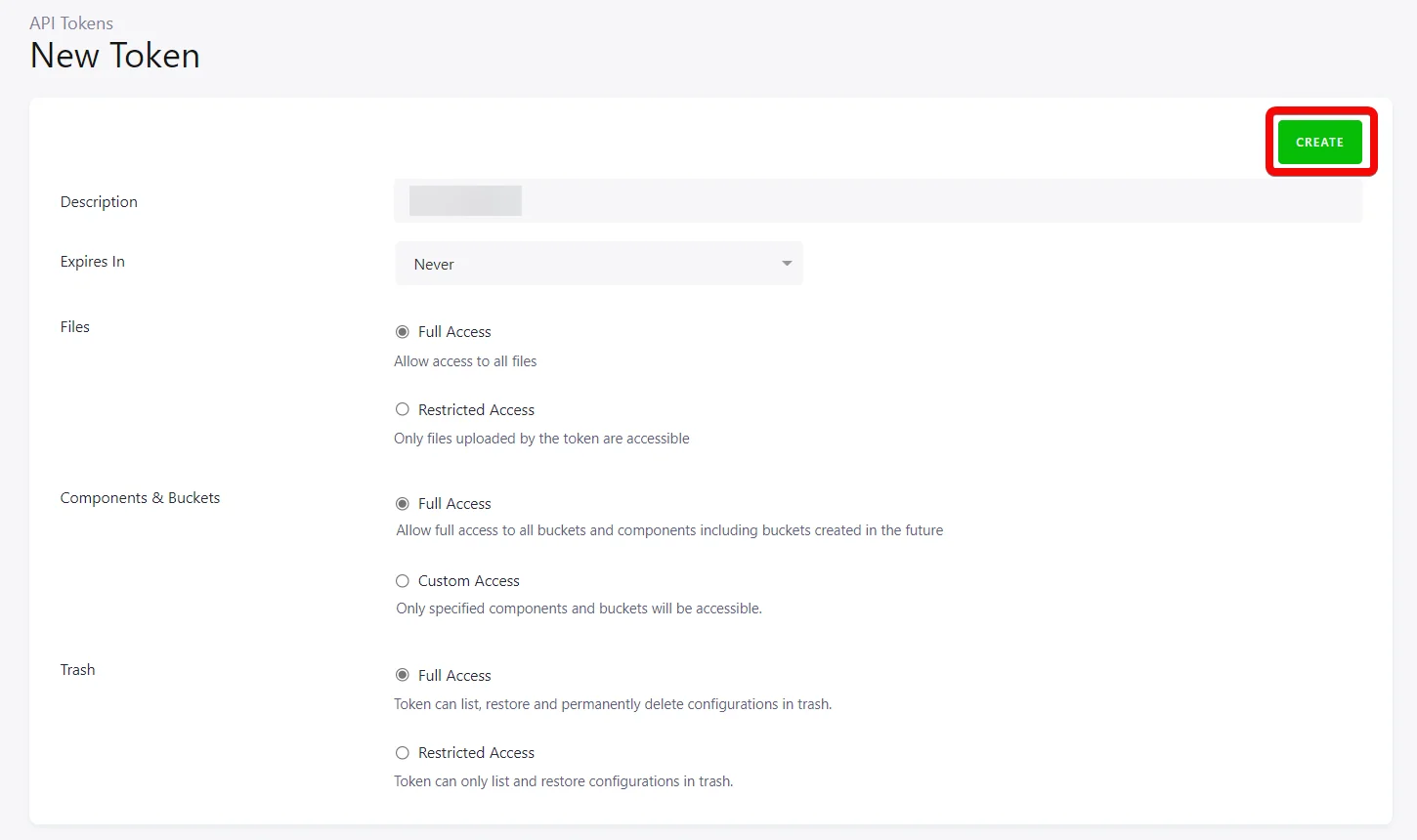
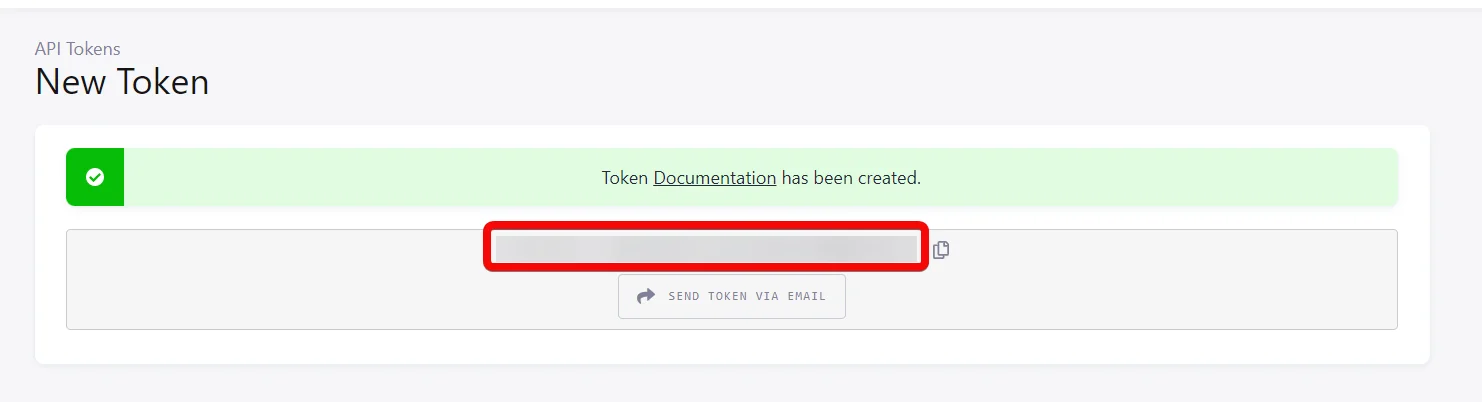
In the API Token tab, click NEW TOKEN, enter a description for the token, and click CREATE.
Ensure your token has the correct scopes assigned. Boost.space Integrator recommends to generate a Full Access token but consider the possible risks resulting from the ability to call any endpoint in the Keboola with this token.
Copy the API Token to your clipboard.
Log in to your Boost.space Integrator and add a module from the Keboola app into a Boost.space Integrator scenario.
Click Add next to the Connection field.
In the Connection name field, enter a name for the connection.
In the API Token field, enter the token copied in step 5.
In the Stack field, enter your Keboola dashboard URL and click Save. For example, If your Keboola dashboard URL is https://connection.north-europe.azure.keboola.com/admin/projects/5505/dashboard, then your stack is north-europe.azure.
�NOTE�
If your Keboola dashboard URL is https://connection.keboola.com/admin/projects/5505/dashboard then leave the Stack field blank.
You have successfully connected the Keboola app with Boost.space Integrator and can now build scenarios.
Import/Export Data
You can upload and preview the data, export the table, and retrieve the file details using the following modules.
Enter (map) the columns separated by a comma to export. By default, all columns are exported.
Where Operator
Select or map the operator:
Equals
Now Equals
Format
Select or map the data format type:
RFC
JSON
Where Filters
Select or map the details to filter the data for preview. You can add multiple filters. For filter examples, refer to the Keboola’s documentation.
Order by
Select or map the options to sort the data for preview. You can add multiple options.
Full Text Search
Enter (map) the data to make a full-text search of all data in the table. You cannot combine this option with whereFilters. Allowed only Snowflake/Synapse.
If a component has a single configuration in your project, the configuration name is not required. However, for components with multiple configurations, for example, configured with different credentials, the configuration names must be different from another.
Config Row IDs
Enter (map) the configuration row IDs.
Config Data
Enter the configuration details.
Parameters
Add the parameter details for configuration:
Key
Enter (map) the name of the key.
Value
Enter (map) the value of the parameter.
Storage
Add the details to store the configuration data:
Source
Enter (map) the source of the data.
Destination
Enter (map) the destination of the data.
Tag
Enter (map) a tag, if you want to run the component with a specific version of code.
Branch ID
Enter (map) a branch ID to run a job of a configuration in a branch.
Variable Values ID
Enter (map) the ID of the variable value to run a job with inline values.