The Uploadcare modules allow you to watch and upload files in your Uploadcare account.
Getting Started with Uploadcare
Prerequisites
An Uploadcare account
In order to use Uploadcare with Boost.space Integrator, it is necessary to have an Uploadcare account. If you do not have one, you can create an Uploadcare account at uploadcare.com/accounts/signup/?.
The module dialog fields that are displayed in bold (in the Boost.space Integrator scenario, not in this documentation article) are mandatory!
Connecting Uploadcare to Boost.space Integrator
To connect your Uploadcare account to Boost.space Integrator you need to obtain the API Key from your Uploadcare account and insert it in the Create a connection dialog in the Boost.space Integrator module.
Log in to your Uploadcare account.

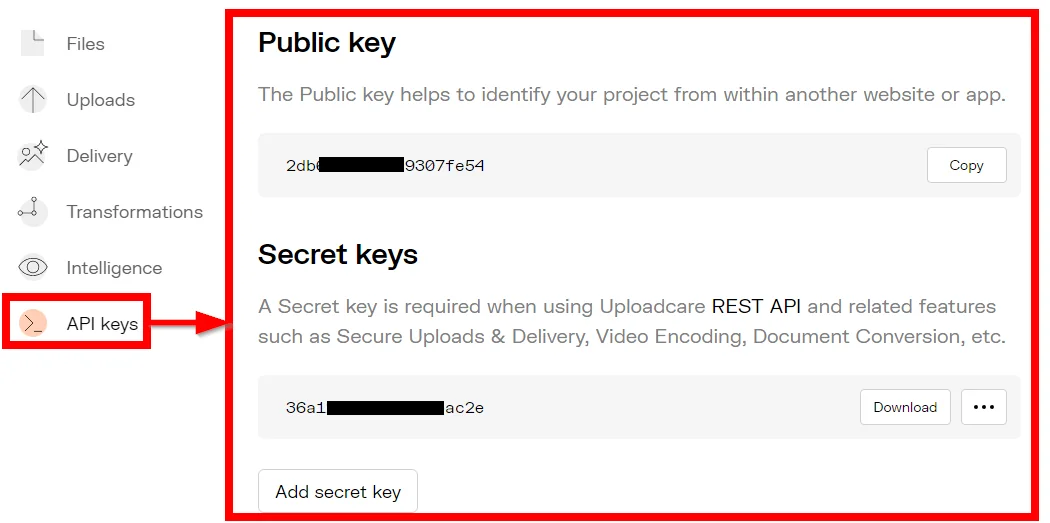
From the Dashboard, click any Project > API Keys > Add Secret Key.
Each project will have a different Public Key and the Secret Key. Click the project with which you want to establish the connection.
Copy the Public Access Key and Secret Key to a safe place.
Go to Boost.space Integrator and open the Uploadcare module’s Create a connection dialog.
In the Connection name field, enter a name for the connection.
In the Public Key and Secret Key fields, enter the keys copied in step 3, and click Continue.
The connection has been established.
Files

Watch File Uploads
Triggers when a new file is uploaded into your project.
You do not have to add the webhooks in the Uploadcare as it is automatically done for you once you add and save an instant trigger module to your scenario.
Select the store to which you want to upload a file:
Files do not get stored after uploading
Files get stored after uploading
Auto
Filename
Enter the filename including the extension. For example, sample.png. You can upload any file of the format, .png, .gif, .jpeg, .jpg, .bmp, .pcx, .tiff, .tga, .webp, and .mpo
File Data
Enter or map the file data.
Other
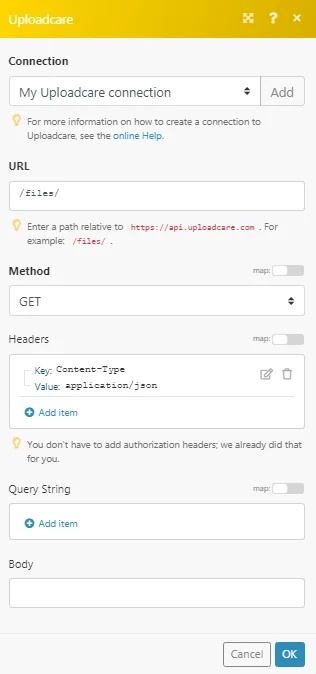
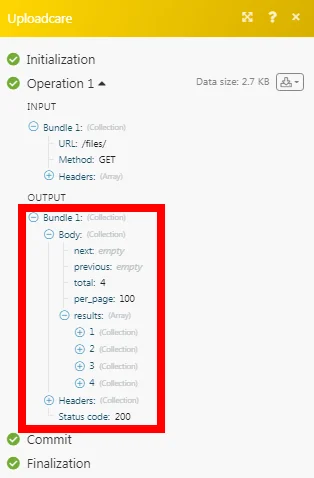
Make an API Call
Performs an arbitrary authorized API call.
You can only retrieve the project files details whose public key and the secret key was used to establish the connection. To make an API call for a different project, create a connection using the specific project’s public key and the secret key.