
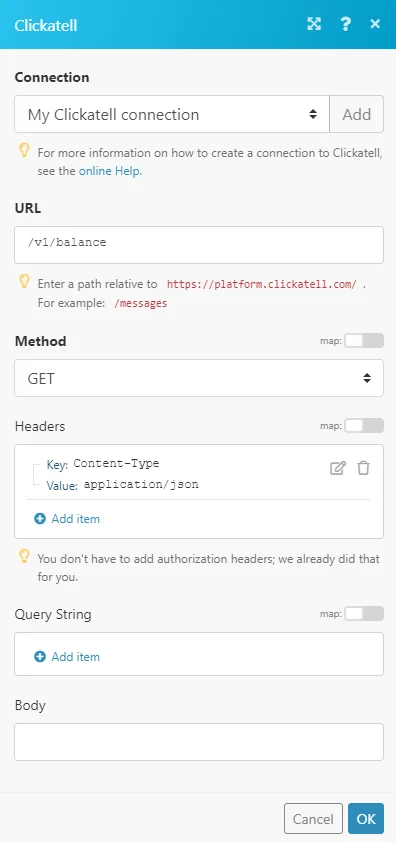
The Clickatell modules enable you to monitor new SMS, create a new SMS, or perform a custom API call in your Clickatell account.
Getting Started with Clickatell
Prerequisites
A Clickatell account
In order to use Clickatell with Boost.space Integrator, it is necessary to have a Clickatell account. If you do not have one, you can create a Clickatell account at www.clickatell.com/sign-up.
The module dialog fields that are displayed in bold (in the Boost.space Integrator scenario, not in this documentation article) are mandatory!
Connecting Clickatell to Boost.space Integrator
To connect your Clickatell account to Boost.space Integrator you need to obtain the API Key from your Clickatell account.

Log in to your Clickatell account.

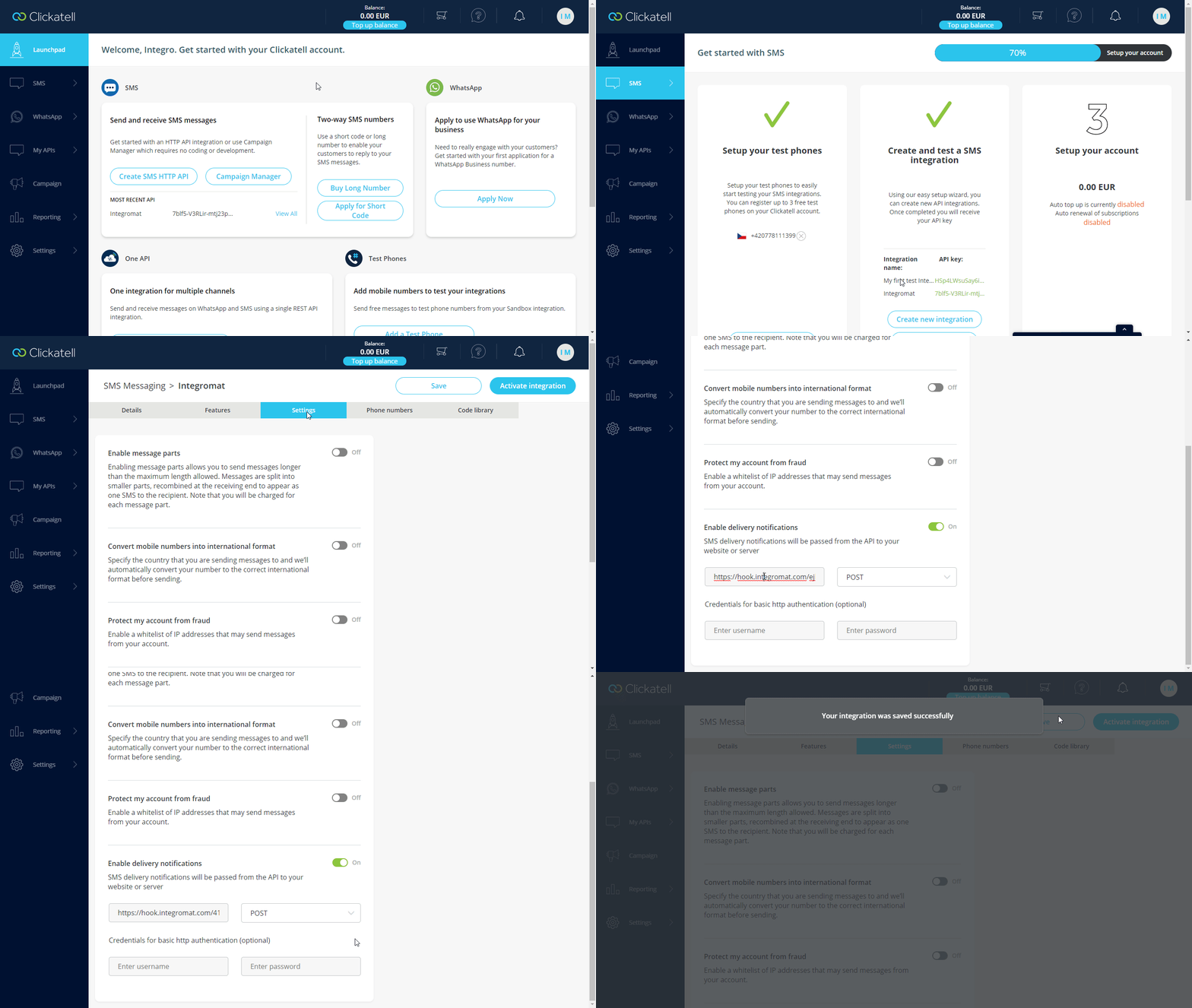
Go to SMS > Configure SMS. Add test phone to test the sending and/or receiving of messages from the Sandbox environment.
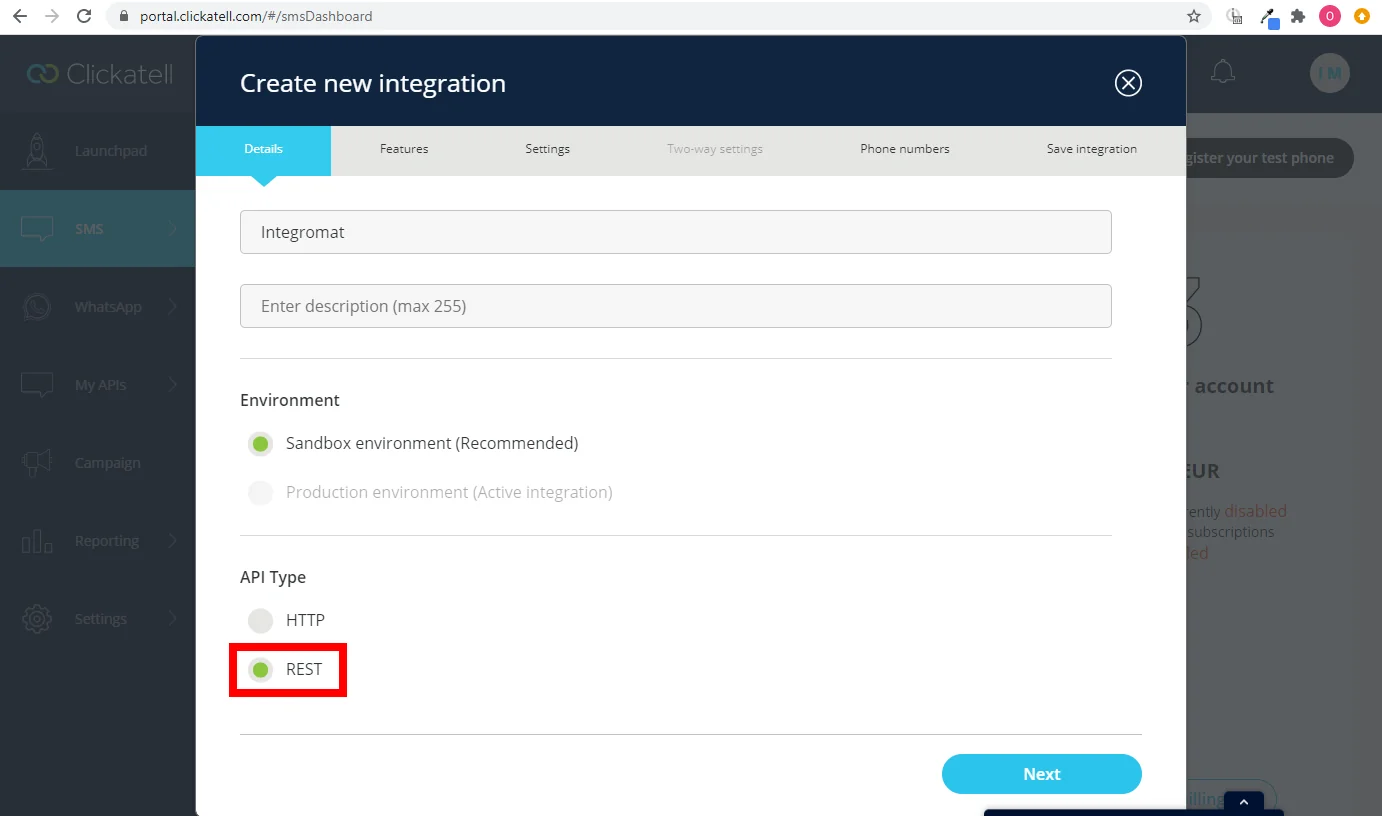
Click the Create new integration button.
Enter the name of the integration, select the environment (for testing purposes select the Sandbox option),and the REST API Type. Click Next.
Select the desired features. Click Next.
Switch on the Enable delivery notifications option to set up the webhook. For more details about the webhook see the Watch New SMS section. Click Next.
Select your test phone.
Save the integration setting by clicking the Finish button.
Click the Integration you have created and copy the provided API Key.
Make sure that you copy the API Key without space after the key.
Go to Boost.space Integrator and open the Clickatell module’s Create a connection dialog.
Enter the API Key you have copied in step 9 to the respective field and click the Continue button to establish the connection.
The connection has been established. You can proceed with setting up the module.
Triggers
Watch New SMS
Triggers when an SMS is received.
The webhook URL needs to be generated in Boost.space Integrator and then added to Clickatell’s integrations settings.
Add the _Watch New SMS_module to your Boost.space Integrator scenario.
Generate and copy the webhook URL.
Log in to your Clickatell account.
Go to SMS > _Configure SMS_and click the API key you are using for Boost.space Integrator.
Open the Settings tab and switch on the Enable delivery notifications option. Enter the webhook URL copied in step 2 above. Click Save.
Now, every time an SMS is received, the _Watch New SMS_module in your Boost.space Integrator scenario is triggered.